





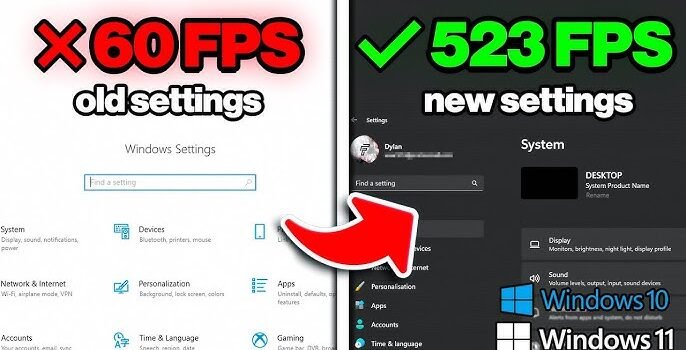
While Microsoft is being criticized for adding AI to Windows 11, the company promises a new Performance Fundamentals philosophy for the next year that aims to make gaming faster by optimizing how your PC behaves.
Windows has had a dedicated Game Mode for several years now, but it didn’t make much of a difference in gaming performance, despite Microsoft saying that it turns things off in the background while you game.
Let’s take a look at the best ways to optimize Windows for gaming.
Enable Game Mode
Microsoft has developed a Game Mode option for Windows 11 to optimize your computer experience when playing games. By utilizing Game Mode, Windows 11 can prioritize the game files associated with each game and lower the chance of being interrupted from another program running in the background.
Most likely, Game Mode is already automatically turned ON when you install Windows 11. So check its status (either ON or OFF) and also use the steps below to enable Game Mode if it happens to be turned off.
- Open Settings.
- Click on Gaming.
- Click the Game Mode page on the right side.
- Turn on the Game Mode toggle switch.
Your performance and experience will differ from system to system, as well as from game to game, when performing these tasks. However, using the game mode option does provide benefits, especially for systems that may be less capable of running other applications while gaming.
Disable Memory Integrity
According to Microsoft, if you’re noticing performance issues while playing games on Windows 11, this can be due to the Memory Integrity and Virtual Machine Platform security features.
When optimizing your computer for gaming performance, it’s recommended to turn off this feature and then turn it back on after completing your gaming session.
To disable Memory Integrity on Windows 11, use these steps:
- Open Windows Security.
- Click on Device Security.
- Click the “Core isolation details” option on the right.
- (Option 2) Turn on the Memory Integrity toggle switch to enable the feature.
- Restart the computer.
Once you’re done playing games, Microsoft recommends re-enabling the feature
Disable Virtual Machine Platform
To turn off virtualization on Windows 11, use these steps:
- Open Settings.
- Click on System.
- Click the Optional features page on the right side.
- Click the “More Windows features” setting.
- Clear the “Virtual Machine Platform” option to disable the feature.
- Click the OK button.
- Restart the computer.
After you’re done playing games, Microsoft recommends re-enabling the feature.
Change power mode
On Windows 11, setting the power mode to “High Performance” is often recommended because it aims to maximize your system’s resources to deliver the best possible gaming experience.
Of course, if you’re using a laptop, you will achieve better performance by gaming with the device plugged into a power source.
To change the power mode on Windows 11, use these steps:
- Open Settings.
- Click on System.
- Click the “Power & battery” (or Power) page on the right side.
- Click the Power Mode setting.
- Choose the Best Performance option for the “Plugged in” and “On battery” settings.
Once you complete the steps, the processor, graphics cards, and other components will have access to more power to improve your gaming performance.
Enable Auto HDR
Auto HDR creates an enhanced version of SDR compatible games for all HDR compatible devices by means of an improved color and contrast ratio that enhances visual immersion in the game while maintaining the same performance level and providing developers with no changes necessary for updating their game.
To enable Auto HDR on Windows 11, use these steps:
- Open Settings.
- Click on System.
- Click the Display page on the right side.
- Turn on the HDR toggle switch.
- Click the Graphics setting at the bottom of the page.
- Turn on the Auto HDR toggle switch.
Auto HDR relies on the system’s “HDR” capabilities, which also have to be turned on, and the “Optimization for the windowed games” feature.
Enable Automatic Super Resolution
Automatic Super Resolution (Auto SR) is a Windows 11 feature that uses AI to upscale games to improve frame rates and image quality.
The feature delivers a smoother and more immersive gaming experience. The only caveat is that Auto SR is only available for Copilot+ PCs and is compatible with specific games.
To enable Auto SR on Windows 11, use these steps:
- Open Settings.
- Click on System.
- Click the Graphics page on the right side.
- Turn on the “Automatic super resolution” toggle switch.
If the feature is causing issues for a specific game, but you want to continue using it for other games, you can turn off the Super Resolution feature from the game settings under the “Custom settings for applications” section.
Change game default GPU
Although I recommend letting the operating system use a specific graphics card, you can change the default GPU on a per-game basis.
- Open Settings.
- Click on System.
- Click the Graphics page on the right side.
- Select the game from the list.
- Choose the High-Performance option in the “GPU preference” setting.
Although you can choose the graphics card for a specific game, the system can ignore the request and use another card as necessary.
Install games on secondary drive
It may help improve the performance of gaming on Windows 11 if the games are stored on a different hard disk drive than the one where Windows 11 is installed.
When Windows 11 is installed, the operating system continually accesses the primary hard drive. If games are on the same hard drive, the amount of pre-load time before the game can play may take longer than normal.
By installing games on a separate drive, particularly a faster one (such as an SSD), you effectively dedicate the drive’s resources primarily to the game, reducing friction with the operating system.
Change refresh rate
Adjusting the refresh rate on your monitor is one of the most significant ways to enhance your gaming experience on Windows 11. That’s, of course, if you have a monitor capable of higher refresh rates and a graphics card powerful enough to render frames at those rates.
The refresh rate, measured in Hertz (Hz), indicates how many times per second your monitor can render the image on the screen. For example, a 60Hz monitor refreshes 60 times per second, a 144Hz monitor refreshes 144 times per second, and so on.
If your monitor refreshes more frequently, it displays new frames more often, resulting in significantly smoother motion, especially in fast-paced games. It also reduces input latency, and you will see less screen tearing.
To set your system to the highest refresh rate, use these steps:
- Open Settings.
- Click on System.
- Click the Display page on the right side.
- Click the Advanced display setting at the bottom of the page.
- Select the highest rate using the “Choose a refresh rate” setting.
- Turn off the “Dynamic refresh rate” toggle switch.
- After you complete the steps, games should play at higher refresh rates.
Free up storage space
It’s never a good idea to run your computer when it’s low on storage because this will negatively affect system performance. Usually, you never want to use a device with drive fill above 70 percent.
To increase the overall system speed and gaming performance, free up as much space as possible on the main system drive. You can also transfer already installed games to a secondary drive, as I mentioned earlier.
To free up space on Windows 11, use these steps:
- Open Settings.
- Click on System.
- Click the Storage page on the right side.
- Click on Clean recommendations.
- Click the Temporary files setting.
- Select the items to clear.
- Quick tip: You can also click the “See advanced options” button to access the Temporary Files settings and delete additional junk files.
- Click the “Clean up” button.
- Click the “Large or unused files” setting.
- Select the files to clear from the hard drive.
- Click the “Clean up” button.
- Click the “Files synced to the cloud” setting.
- Select the files already synced to the cloud.
- Click the “Clean up” button.
- Click the Unused apps setting.
- Select and remove the apps you rarely use to free up more space.
Final Thoughts
After completing the steps, you may notice an improvement in overall performance on Windows 11, including while playing games.
FAQs
1. Does Windows Game Mode really help with gaming?
Yes, Game Mode prioritizes system resources for games by reducing background tasks and improving frame consistency.
2. Should I disable startup programs to boost game performance?
Yes, limiting startup programs frees up RAM and CPU resources, resulting in faster game loading and smoother play.
3. Is it safe to turn off visual effects in Windows for gaming?
Disabling animations and transparency effects can improve performance, especially on mid-range or older PCs.
4. How does background software affect gaming performance?
Apps running in the background consume system resources and may cause stuttering or input lag during gameplay.
5. Can regular system maintenance improve gaming performance on Windows?
Yes, cleaning temporary files, updating Windows, and scanning malware to help maintain consistent gaming performance.