






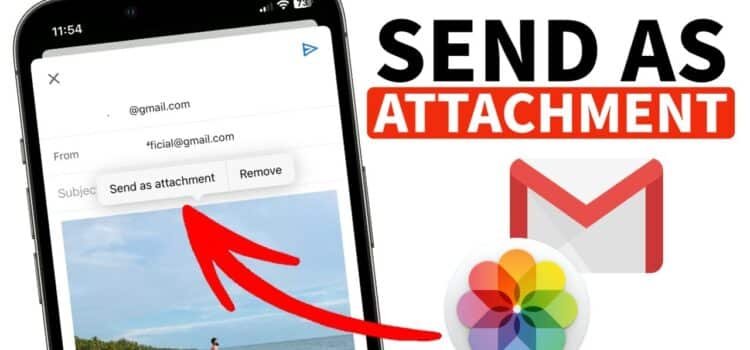
The Gmail iOS update adds a Google Photos picker, letting you attach photos or videos directly, with multi-selection and search features for easy sharing.
Gmail for iPhone and iPad now features a dedicated Google Photos picker, speeding up and simplifying photo and video sharing while composing emails on iOS. This is particularly helpful for those who use Google Photos as their main media library.
Users now see a Google Photos option in the attachment menu. Before, Gmail used Apple’s picker; now, it offers a direct Google Photos interface.
The main advantage of the new picker is its integration with the signed-in Gmail account, including Gmail and Google Photos. Using existing credentials, no extra authentication is required. Users can quickly browse and attach photos or videos from Google Photos, making email composition easier.
The interface is familiar to Google Photos users. A search bar at the top helps users quickly find specific images or videos. Matches album names and shows recent searches. Below is a grid layout that presents media items in a clean, scrollable view.
How The Photos Picker Works
The photo picker supports multi-selection, allowing users to select multiple photos and videos at once. This feature is especially useful for sharing event photos, document images, or video clips since it eliminates the need to attach files individually.
A similar Photo Picker has been available on Android devices for a long time. Bringing this to iOS offers a more consistent Gmail experience across platforms.
Google announced the iOS feature, but has not set a release schedule. Availability may vary by region or app version as the gradual update continues. Users who do not see the new Google Photos option should update Gmail and may need to wait for a server-side change.
The new Google Photos picker streamlines sharing and brings iOS Gmail closer to Android. Frequent media sharers will benefit.
Google has introduced a new way to share photos and videos in Gmail by integrating a Google Photos speaker directly into the app. According to the Google Support page, users can now attach media from their Google Photos library without switching apps or completing extra sign-in steps. This Google iPhone update lets users select backed-up photos and videos from albums, collections, or shared albums, then send them via email.
What’s new in Gmail for iOS
The picker works with your signed-in Google account. Additional permissions aren’t needed; you only select photos or videos to share.
Google explained that the Photos Picker includes several helpful options:
- A built-in search bar lets users quickly find images or videos displaying recent searches and matching keywords to album names.
- Multi-selection lets users choose multiple photos and videos at once rather than attaching them individually.
The Photos picker also works in other apps, granting access only to selected items.
You can email backed-up photos and videos directly through the Gmail app
- On your iPhone or iPad, open the Gmail app.
- At the top of the email template, tap “Attachment” and then “Google Photos.”
- Choose the photos and videos you want to share.
- At the top, tap “Done.”
The official Google App for iOS is available as a Gmail update for iPhone and an iPad update. It supports multiple accounts, including Gmail, Outlook, iCloud, and Yahoo!. The app requires a recent version of iOS and can be downloaded from the App Store. Main features include smart reply, search, and real-time notifications.
Important details for Gmail on iOS
Install Gmail by downloading “Gmail: Email by Google” from the App Store.
Add multiple accounts, including Gmail and other IMAP/POP addresses.
Features:
- Post notifications
- Email threads
- Spam filters
- Search
Supported devices for the Gmail iOS update include iPhone and iPad models running the latest iOS version.
You can also set up Gmail in iOS Mail under Settings > Mail > Accounts.
To add an account, open the Gmail app, tap your profile picture in the right corner, then select Add another account, and follow the on-screen instructions to sign in with your email address and password.