





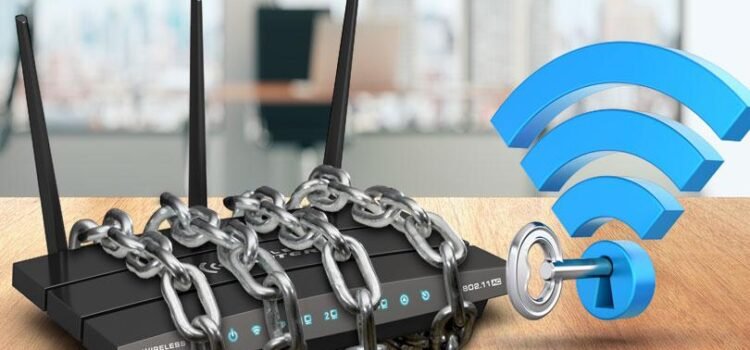
Nowadays, in this busy world Wi-Fi is absolutely essential in our busy routine to get connected to the world, where hackers constantly probe for vulnerabilities. With cyber threats evolving rapidly, implementing strong secure Wi-Fi practices protects your data, devices, and privacy from unauthorized access.
This article provides a clear glance on overs step-by-step methods, focusing on WPA3 adoption, optimal router placement, and more to create a fortress-like setup.
Upgrade to WPA3 Encryption
The secure Wi-Fi starts with very strong encryption. WPA3 represents the latest trending standard, which are offering supreme protection against the brute-force attacks compared to the older protocols like WPA2.
This table provides glance on the encryption type like WEP or the WPA and the security level which varies very low or moderate or high level also the key features and the recommendations
| Encryption Type | Security Level | Key Features | Recommendation |
| WEP | Very Low | Easily cracked in minutes | Avoid completely |
| WPA | Low | TKIP vulnerabilities | Do not use |
| WPA2 | Moderate | AES encryption, but handshake flaws | Transitional only |
| WPA3 | High | Forward secrecy, anti-downgrade | Enable on all devices destcert+1 |
To enable WPA3, log into your router’s admin panel, navigate to wireless settings, and select WPA3-Personal or WPA3-Enterprise. Pair it with a strong passphrase at least 20 characters long, mixing letters, numbers, and symbols. This thwarts offline dictionary attacks that plague WPA2. For businesses, WPA3-Enterprise with 802.1X provides per-user authentication and logging access for accountability.
Optimize Router Placement and Physical Security
Router placement directly impacts secure Wi-Fi by controlling signal range. The router should be placed in the center of the indoor area to minimize spillover to neighbors or public areas, reducing risk.
Here in this tabular form, there is a clear understanding of placement factors, and the best practices explained the risk which can be ignored and also the benefits attained.
| Placement Factor | Best Practice | Risk if Ignored | Benefit |
| Location | Central home position | Signal leaks outside metacompliance+1 | Limits interception |
| Elevation | High shelf, away from walls | Weak coverage, interference | Even distribution |
| Interference Sources | Avoid microwaves, cordless phones | Degraded speed, exploits | Stable connection |
| Physical Access | Locked room | Tampering possible | Prevents hardware to for attacks |
So, to maintain high-end security, hide your SSID [network name] to make it less known for, now just access the broadcast settings and then disable it. Then enable the MAC address filtering only for the approved devices, then disable WPS and UPnp, as they are prone to exploitable vulnerabilities. At last, turn off remote administration to external logins.
Change Defaults and Update Firmware
Every now and then, change the default username and password on your wifi router immediately after setup, because if you put an easy password that can be cracked easily and utilized by everyone, and it’s also easy to hack. Just log in to your router in the admin panel via web browser, then navigate to the administration and just set robust, unique credentials with almost 12 characters including letters, numbers, and symbols, and save the changes to lock out intruders who exploit these common defaults.
On the other side, update your router’s firmware on the maintenance setting page to check on regular updates or download the latest version from the manufacturer’s website. Moreover, the outdated software often contains the well-known vulnerabilities that mostly get targeted by cyberattacks, so finally enable and ensure your network benefits from the latest security patches and performance to fix.
| Default Setting | Action | Why It Matters | Tool Needed |
| Admin Password | Change to unique strong one | Prevents easy takeover | Router interface |
| SSID | Customize non-identifying name | Avoids targeted attacks | Wireless settings |
| Firmware | Update regularly | Patches known exploits | Manufacturer site/app |
Check for firmware updates every month via router’s dashboard or the app vendors like TP-link to release frequently. Use a guest network for visitors and then isolate them from main setup with bandwidth under limits and no inter-device access. This contains breaches if a guest device is compromised.
Implement Network Segmentation
Network segmentation divides your Wi-Fi network into isolated zones, limiting the spread of malware or hackers from one device to others, much like firewalls between rooms in a house. To implement it on a home router (e.g., via your Wi-Fi admin panel at 192.168.1.1), first map your devices by risk: group IoT gadgets (smart TVs, cameras) on a separate “Guest” VLAN or subnet (e.g., 192.168.10.x), family laptops/phones on the main subnet (192.168.1.x), and sensitive items like NAS drives on a secure third zone.
Ensure in dividing your network to avoid the level of damage. Make sure to separate IOT devices from critical ones like computers.
| Network Segment | Purpose | Isolation Method | Security Gain |
| Main Network | PCs, phones | WPA3, VLANs | Full access control |
| IoT Network | Smart devices | Separate SSID, firewall rules | Prevents botnet spread |
| Guest Network | Visitors | Client isolation enabled | No main network reach |
Enable Protected Management Frames (PMF) in WPA3 for tamper-proof signaling. Use a firewall to monitor traffic and block suspicious patterns. For advanced users, dynamic VLANs assign segments based on device type.
Monitor and Use Additional Layers
Regular monitoring is necessary to detect rogues using tools like Wi-Fi analyzer apps. Verify connected devices in your router logs and quickly boot the unknowns.
| Monitoring Tool | Function | Free Options | Pro Tip |
| Router Logs | Device list | Built-in | Check weekly |
| Apps (Fing, NetSpot) | Rogue detection | Yes | Scan for unknowns |
| VPN | Encrypt traffic | ProtonVPN Free | Essential on guest WiFi |
Layer on a VPN for all devices to mask your IP and encrypt data end-to-end. Disable Wi-Fi when away via scheduling. For enterprises, deploy Wireless Intrusion Prevention Systems (WIPS). These steps ensure comprehensive, secure WiFi.
Common Threats and Mitigation Comparison
| Threat | Description | Mitigation Strategy | Effectiveness |
| Man-in-the-Middle | Intercepts traffic | WPA3, VPN | High |
| Rogue APs | Fake hotspots | PMF, site surveys | High |
| Password Cracking | Brute force attacks | Strong passphrase, 802.1X | Very High |
| Firmware Exploits | Unpatched vulnerabilities | Regular updates | Essential |
| Neighbor Snooping | Signal bleed | Central router placement metacompliance+1 | Moderate |
Ongoing Maintenance Checklist
- Every week review connected devices.
- Each month, check and update firmware, change passwords.
- Test quarterly speeds, scan for interference.
- Check annually audit settings; consider hardware upgrades.
By prioritizing WPA3, strategic router placement, and always vigilant monitoring, your network becomes a to very tough target. These secure Wi-Fi measures, drawn from expert consensus, safeguard against most threats in 2026’s landscape. Stay proactive and there should be security ongoing.
Conclusion
To conclude, securing your Wi-Fi network demands consistent efforts, but the payoff is digital which is like a shield that protects your personal data, finances and privacy from the relentless cyber threats.By embracing WPA3 encryption, strategic router placement, and habits like firmware updates and guest networks, you transform a common vulnerability into a robust defense. These steps not only block hackers and rogue access points but also future proof your setup against evolving attacks in 2026’s hyper-connected landscape.
Ultimately, proactive maintenance turns security into second nature:
Now, scan devices weekly, segmenting networks for IoT and guests, and layering on VPNs for extra armor. Neglect invites disaster, from identity theft to ransomware, but vigilance empowers you to browse, stream, and smart home with confidence.
FAQS
1. What makes WPA3 the best secure WiFi?
WPA3 offers top-tier encryption with forward secrecy and brute-force resistance, far surpassing WPA2 to enableit in your router settings for protection purposes.
2. How does router placement enhance secure WiFi?
Place the router indoor in center, keep it in hight away from the ways to eliminate the interference of the signal benefit to outsiders, which reduces snooping risks.
3. Why change default router passwords?
Defaults like “12345” are public which are easily guessed by the hackers, neighbors, so that’s the reason to use strong passwords.
4. Should I use a guest network for visitors?
Yes, it isolates guests from your main network with client isolation, preventing them from accessing your devices if compromised.
5. How often should I update router firmware?
Check monthly for patches against new exploits outdated firmware leaves your secure WiFi vulnerable to known attacks.