




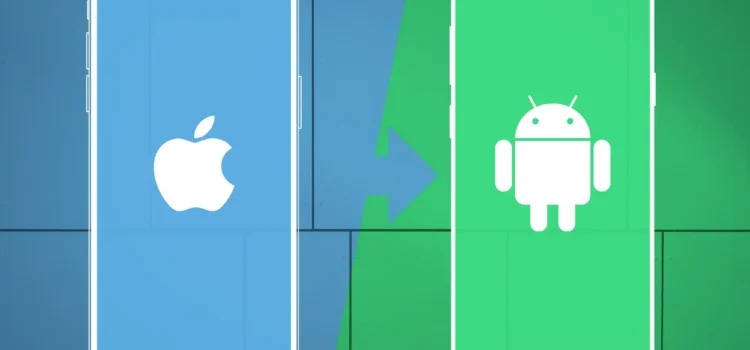
With so many excellent Android phones on the market, iPhone owners have plenty of reasons to consider making the switch to Android devices. Similarly, are you worried about losing your precious WhatsApp memories? The following are the important steps to remember before switching your device.
Before you begin
- On your Android device, make sure Wi‑Fi is turned on, and plug your new iOS device and your Android device into a power source.
- Alternatively, you can also use a USB-C cable to directly connect your Android device and your iPhone for a faster transfer.
- Make sure the content you’re moving, including what’s on your external Micro SD card, will fit on your new iOS device
- If you want to transfer your Chrome bookmarks, update the latest version of Chrome on your Android device.
iPhone to Android Data Transfer
You can use a USB cable between your iPhone and Android, or a specific manufacturer app, to transfer content from iPhone to Android during the initial setup of the Android device; however, these methods are not suitable for an Android that has already been set up.
If your Android has already been set up, skip the other sections of this guide to find out how to select exactly what content you want to transfer from iPhone to Android.
Transfer content directly from iPhone to Android using a USB cable
- Turn on both devices and ensure they are charged.
- On the new Android device, tap Start to begin the setup.
- Follow the on-screen prompts to transfer your SIM card from iPhone to Android and connect to your Wi-Fi network.
- Connect the iPhone to the Android with your USB cable (and adaptor if required).
- Tap “Trust” if prompted for permission.
- Sign into your Google Account (or create one if you don’t already have one).
- On Android, select the content types you want to copy from iPhone to Android.
- Tap “Copy.”
Transfer Photos and Videos from iPhone to Android with TouchCopy
- Download Touch Copy on your computer and run it.
- Connect your iPhone to TouchCopy using USB or Wi-Fi and select the “Photos” section.
- Click “Save to PC” or “Copy to Mac”. This will also copy any videos on your device.
How to Transfer Contacts from iPhone to Android with Contact Transfer
- Launch Contact Transfer on your Windows 10 or 11 PC and choose “iOS Device” as your source, and “Android Device” as your Destination. Click Continue.
- Then connect your devices to your PC. Check out the guide for how to connect your devices with Contact Transfer using USB and Wi-Fi. Then click Continue.
- Select the contacts that you wish to copy from your iPhone. You can select all the contacts by clicking the “All” checkbox.
- Click Transfer!
WhatsApp Transfer
If you’re moving from an iPhone to an Android device, you can transfer your:
- Account information
- Profile photo
- Individual chats
- Group chats
- Communities
- WhatsApp Channels updates
- Chat history
- Media and settings
You can’t transfer your call history, display name, status updates, or media received over WhatsApp Channels.
Steps to move your chats from an iPhone to an Android device:
- Download the latest WhatsApp iOS version available in the App Store.
- Set up your new Android device and choose to restore data when prompted.
- Connect the devices by cable when the Copy apps and data screen appears.
- Tap Trust if the iPhone warning appears.
- Proceed through copying screens.
- Keep the iPhone unlocked during transfer.
- Use the iPhone camera to scan a QR code when prompted.
- Tap Start.
- Finish transfer and disconnect the cable.
- Open WhatsApp on your Android device.
- Verify your account using the same phone number used on your old device.
- Tap Start when prompted to import your chat history.
Remember Following Things
- You can only restore your chats before you’ve activated WhatsApp on your new Android device. If you want to restore your old chats, you’ll need to first uninstall WhatsApp on your new device. You can’t merge new chats from your new phone and old chats from your old phone.
- It’s currently not possible to transfer chats from an iPhone to an Android device on the WhatsApp Business app.
- Your old device will still have your data unless you wipe it or delete WhatsApp.
- Transferring chats by cable means transferring data doesn’t go to cloud storage. However, you might have sent this data to your cloud storage separately by backing up chats to your iCloud account.
- WhatsApp can’t see the data you transfer.
- It’s not possible to transfer your chats to a new phone number. You’ll need to change your phone number on your old device to your new phone number to transfer chats.
- You can transfer personal messages, but you can’t transfer peer-to-peer payment messages.
Your call history and status updates can’t be transferred from an iPhone to an Android device.
Transferring data from the cloud
If you don’t have too much data to transfer, or you’d rather just set up your Android phone as new, you can also choose to transfer your data from the cloud. This applies only to select data, however. If you use Google One, you can sync only photos, videos, contacts and calendars. To do so, simply backup your iPhone’s data with Google One and then open the Google One app on your Android phone.
Android to iPhone WhatsApp and Data Transfer
If you’re moving from an Android phone to an iPhone, you can transfer your account information, profile photo, individual chats, group chats, communities, WhatsApp Channels updates, chat history, media, and settings. You can’t transfer your call history or display name, or media received over WhatsApp Channels.
However, it’s currently not possible to transfer chats from an Android device to an iPhone on the WhatsApp Business app.
What do You need?
- Android OS Lollipop, SDK 21 or above, or Android 5 or above installed on your Android device.
- iOS 15.5 or above installed on your iPhone.
- Move to iOS app installed on your Android phone. Note: Using other data migration apps is not supported and will cause migration issues.
- Latest WhatsApp iOS version available in the App Store and latest WhatsApp Android version available in the Google Play Store.
- Use the same phone number as your old phone on your new device.
- Your iPhone must be factory new or reset to factory settings to pair with the Move to iOS app and move data from your Android phone.
- Both of your devices must be connected to a power source.
- Both of your devices need to be connected to the same Wi-Fi network, or you’ll need to connect your Android device to your iPhone’s hotspot.
Move chats from Android to iPhone
- Open the Move to iOS app on your Android phone and follow the on-screen prompts.
- A code will be displayed on your iPhone. When prompted, enter the code on your Android phone.
- Tap Continue and follow the on-screen prompts.
- Select WhatsApp on the Transfer Data screen.
- Tap Start on your Android phone and wait for WhatsApp to prepare the data for export. You’ll be signed out from your Android phone once the data is prepared.
- Tap Next to return to the Move to iOS app.
- Tap Continue to transfer the data from your Android phone to your iPhone and wait for Move to iOS to confirm the transfer is complete.
- Install the latest version of WhatsApp from the App Store.
- Open WhatsApp and log in using the same phone number used on your old device.
- Tap Start when prompted and allow the process to be completed.
- Finish activating your new device and you’ll see your chats waiting for you.
Troubleshooting Common Transfer Issues
If you encounter any issue, such as Insufficient Storage Space, try these solutions:
- Go to Settings and check the storage on new devices.
- If the new device’s storage is full, consider expanding your storage plan or deleting unnecessary files
Final Thoughts
With your data transferred, it is time to enjoy your new device. Remember to prioritize the security of your personal information and to perform all the necessary setups so you can make the transition as seamless as possible. With these tips and tricks, moving into your new gadget will be easy.
Even though you can’t directly restore Android backup on iPhone, it is better to maintain a backup nevertheless. This will ensure that you always have a copy of your WhatsApp chats.
FAQs
1. Do I have to factory reset my new iPhone to transfer WhatsApp?
It depends on the method you choose. If you use Apple’s official “Move to iOS” app, then yes, your iPhone must be in a new or factory-reset state. This is a strict requirement of the official method. However, if you have already set up your iPhone and don’t want to erase your data, you can use third-party tools like MobileTrans. These tools do not require a factory reset and can migrate your WhatsApp data directly to an already-in-use iPhone.
2. Will I lose my WhatsApp data if the transfer fails or gets interrupted?
Generally, no. The transfer process is designed to “copy” your data, not “cut” or “move” it. Your original WhatsApp data on your Android phone will remain safe and untouched if a transfer fails. You can safely troubleshoot the issue (e.g., check your Wi-Fi, try a new cable) and attempt the transfer again without fear of losing your source data.
3. Do I need a computer to switch between iPhone and Android?
Not always. Many transfers can be done wirelessly using official apps, though a computer may help with backups or media transfers.
4. What happens to my apps when I switch platforms?
Some apps need to be reinstalled from the app store, and app-specific data may not always transfer between platforms.
5. Are there any settings I should turn off before switching?
Yes, it’s recommended to disable iMessage and FaceTime when moving from iPhone to Android, and to back up your data beforehand.