





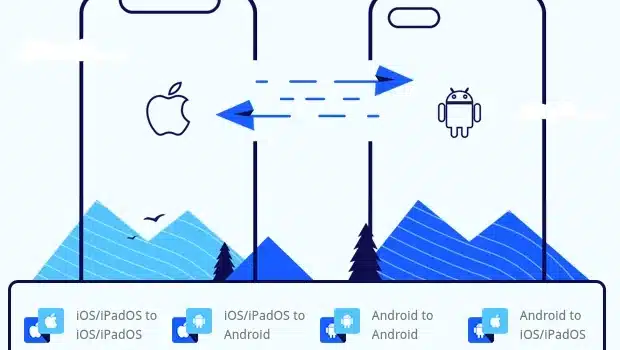
In today’s fast-paced digital world, getting a new smartphone is exciting. However, the thought of transferring all your data from the old device to the new one can be daunting. Fortunately, with the advent of cloud services and enhanced connectivity features, moving data between Android and Apple devices has become easier than ever. This blog simplifies the process, showing you how to transfer your important contacts, messages, photos, and files smoothly and securely.
Before you begin
- On your Android device, make sure Wi‑Fi is turned on, and plug your new iOS device and your Android device into a power source.
- Alternatively, you can also use a USB-C cable to directly connect your Android device and your iPhone for a faster transfer.
- Make sure the content you’re moving, including what’s on your external Micro SD card, will fit on your new iOS device
- If you want to transfer your Chrome bookmarks, update to the latest version of Chrome on your Android device.
Android to iPhone
Get started on your Apple device
- Turn on your new Apple device and place it near your Android device.
- On your Apple device, follow the onscreen setup instructions.
- On the Quick Start screen, tap Set Up Without Another [Apple] Device, then continue to follow the onscreen instructions. You may be asked to activate your eSIM.
Tap Move Data from Android
Look for the Transfer Your Apps & Data screen. Then tap From Android. (If you’ve already finished the setup process, you need to erase your iOS device and start again. If you don’t want to erase, just transfer your content manually)
Open and set up the Move to iOS app
On your Android device, open the Move to iOS app. If you don’t have the Move to iOS app, you can tap the QR code button on your new iOS device and scan the QR code using the camera on your Android device to open the Google Play Store.
To start using the Move to iOS app:
- Tap Continue.
- Read the terms and conditions that appear, then tap Agree to continue.
- Tap Automatically Send or Don’t Send to choose how to share app data with Apple.
- Tap Continue and enable Location permissions if necessary.
- Tap Continue and enable Notification permissions if necessary.
- Wait for a code
On your iOS device, tap Continue when you see the Move from Android screen. Then wait for a 10-digit or 6-digit code to appear. If your Android device displays an alert stating that you have a weak internet connection, you can ignore the alert.
If you don’t receive a six-digit code, find out how to reset your device and generate a six-digit code
- Use the code
- Enter the code on your Android device.
Connect to a temporary Wi-Fi network
Your iOS device will create a temporary Wi-Fi network. When asked, tap Connect to join that network on your Android device. Then wait for the Transfer Data screen to appear.
Choose your content and wait
On your Android device, select the content you want to transfer – from Contacts and SMS messages to Call History or audio files – and tap Continue.
Then – even if your Android device shows that the process has been completed – leave both devices alone until the loading bar that appears on your iOS device has finished. Keep your devices near each other and plugged into a power source until the transfer has been completed. The whole transfer can take a while, depending on how much content you’re moving.
Transfer your phone number and SIM or eSIM
As you move from your Android device, you can activate your phone number and SIM or eSIM on your iPhone or iPad. You may be directed to your network provider’s website to finalise this activation.
Make sure you leave both devices alone until the transfer has finished. For example, on your Android device, the Move to iOS app should stay onscreen the whole time. If you use another app or get a phone call on your Android device before the transfer has finished, your content won’t be transferred.
On your Android device, turn off apps or settings that may affect your Wi-Fi connection, like the Sprint Connections Optimiser or the Smart Network Switch. Then find Wi-Fi in Settings, touch and hold each known network, and forget the network. Then try the transfer again.
- Restart both of your devices and try again.
- On your Android device, turn off your mobile data connection. Then try the transfer again.
iPhone to Android
You can use a USB cable between your iPhone and Android, or a specific manufacturer app, to transfer content from iPhone to Android during the initial setup of the Android device; however, these methods are not suitable for an Android that has already been set up.
If your Android has already been set up, skip to the other sections of this guide to find out how to select exactly what content you want to transfer from iPhone to Android.
Transfer content directly from iPhone to Android using a USB cable
- Turn on both devices and ensure they are charged.
- On the new Android device, tap Start to begin the setup.
- Follow the on-screen prompts to transfer your SIM card from iPhone to Android and connect to your Wi-Fi network.
- Connect the iPhone to the Android with your USB cable (and adaptor if required).
- Tap “Trust” if prompted for permission.
- Sign into your Google Account (or create one if you don’t already have one).
- On the Android, select the content types you want to copy from iPhone to Android.
- Tap “Copy”.
Transfer Photos and Videos from iPhone to Android with TouchCopy
- Download TouchCopy on your computer and run it.
- Connect your iPhone to TouchCopy using USB or Wi-Fi, and select the “Photos” section.
- Click “Save to PC” or “Copy to Mac”. This will also copy any videos on your device.
How to Transfer Contacts from iPhone to Android with Contact Transfer
- Launch Contact Transfer on your Windows 10 or 11 PC and choose “iOS Device” as your source, and “Android Device” as your Destination. Click Continue.
- Then connect your devices to your PC. Check out the guide for how to connect your devices with Contact Transfer using USB and Wi-Fi. Then click Continue.
- Select the contacts that you wish to copy from your iPhone. You can select all the contacts by clicking the “All” checkbox.
- Click Transfer!
Android to Android
- Connect both phones wirelessly.
- Turn on your new and existing Android phones to transfer data from one phone to another.
Your new Android phone will give you instructions right on the screen to connect your old device and transfer data from your phone.
- Turn on your Android device
- Turn on your Android device and tap Start.
Tip: You can change your phone’s language or vision settings now if needed.
Step 2: Connect to Wi-Fi or a mobile network
- To connect to Wi-Fi, choose from the list of available networks when prompted.
- To turn on your data network, insert your SIM card or download your eSIM from your carrier.
Copy your apps & data
- To copy apps and data on your new Android device, tap Copy.
It can be done with a cable, a stable Wi-Fi connection, and restoring data from Google One
Troubleshooting Common Transfer Issues
If you encounter any issue, such as Insufficient Storage Space, try these solutions:
- Go to Settings and check the storage on new devices.
- If the new device’s storage is full, consider expanding your storage plan or deleting unnecessary files
Final Thoughts
With your data transferred, it is time to enjoy your new device. Remember to prioritize the security of your personal information and to perform all the necessary setups so you can make the transition as seamless as possible. With these tips and tricks, moving into your new gadget will be easy.
FAQs
1. What data can be transferred from an old phone to a new one?
You can transfer contacts, photos, videos, messages, apps, call logs, settings, and sometimes app data, depending on the transfer method and phone model.
2. Do I need an internet connection to transfer data?
Some methods, like cable-based transfers or phone-to-phone wireless transfer, don’t require internet, while cloud-based transfers need a stable connection.
3. How long does data transfer usually take?
The time depends on the amount of data and transfer method. Small transfers may take minutes, while large backups can take an hour or more.
4. Will all apps transfer automatically to the new phone?
Apps usually reinstall automatically, but you may need to log in again, and some app data may not carry over between platforms.
5. Should I erase my old phone after transferring data?
Yes, once you confirm all data has transferred successfully, factory reset your old phone to protect your privacy.