



Transferring data to your new phone is a seamless experience that will ensure you do not lose any of your precious memories or WhatsApp chat history during the transition. Be it transferring contacts from Android to iOS or moving from one iOS version to another, the built-in features of Google or Apple’s Quick Start ensure the job is easy. Let’s get into the article.
Before You Start: Prep Your Old Phone
No matter which direction you’re switching, preparation makes everything smoother.
First, make sure your old phone is fully backed up. Connect to Wi-Fi and plug it into power. Updates can take time, and interruptions create headaches.
Second, update both phones to the latest operating system version. Compatibility issues often happen when one device is running outdated software.
Third, gather your login credentials. You’ll likely need:
- Apple ID and password
- Google account email and password
- App-specific logins
- Two-factor authentication access
If possible, disable two-factor authentication temporarily until the transfer is complete or ensure you have a backup verification method.
Android to iPhone: Step-by-Step
Switching from Android to iPhone is common in the U.S., especially among users entering the Apple ecosystem for the first time.
Apple makes this process relatively smooth using the Move to iOS app.
Step 1: Download “Move to iOS” on Your Android Phone
On your Android device, download the official Move to iOS app from the Google Play Store.
This app securely transfers:
- Contacts
- Message history
- Photos and videos
- Email accounts
- Calendars
- Web bookmarks
It does not transfer apps directly, but the iPhone will suggest App Store equivalents.
Step 2: Start iPhone Setup
- Turn on your new iPhone and begin setup.
- When you reach the “Apps & Data” screen, select “Move Data from Android.”
- Your iPhone will generate a one-time code.
Step 3: Connect Both Devices
- Open Move to iOS on your Android phone and enter the code displayed on your iPhone.
- The two devices will connect over a private Wi-Fi network created by the iPhone.
- Select the data you want to transfer and wait. Large photo libraries can take 30–60 minutes.
Keep both phones plugged in and near each other during the transfer.
Step 4: Sign Into Your Apple ID
Once the transfer finishes, complete the iPhone setup and sign in to your Apple ID. Your contacts, messages, and photos should now appear.
What Doesn’t Transfer Automatically?
Some items require manual setup:
- WhatsApp chats (use WhatsApp’s built-in transfer tool)
- Two-factor authentication apps
- Music stored outside streaming apps
- Certain Android-only apps
You may need to redownload apps from the App Store and log in again.
iPhone to Android: Step-by-Step
Switching from iPhone to Android is also common, especially with premium Android devices offering strong hardware value. Most major Android brands in the U.S. now offer guided transfer tools during setup.
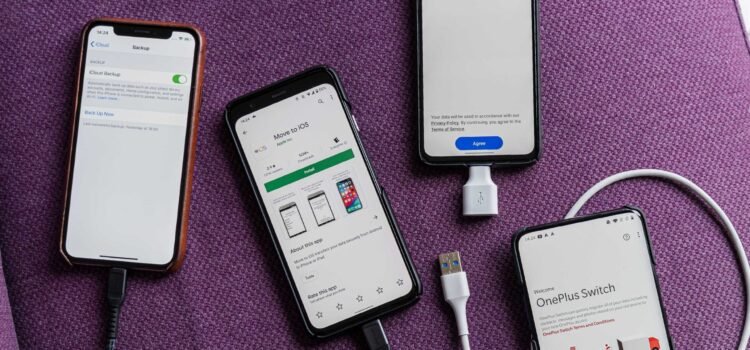
Step 1: Back Up Your iPhone
Before switching, ensure your iPhone is backed up to iCloud.
Go to Settings > Tap your name > iCloud > iCloud Backup > Back Up Now.
Even though you’re switching platforms, having a backup protects you in case something goes wrong.
Step 2: Start Android Setup
Turn on your new Android phone. During setup, select the option to copy apps and data. You’ll be prompted to connect to your old phone.
Step 3: Connect Using Cable (Recommended)
Most Android devices now support direct cable transfers from an iPhone. Using a Lightning-to-USB-C cable (or adapter), connect your iPhone to your new Android phone. This method is faster and more reliable than wireless transfer. Sign in to your Google account when prompted.
Step 4: Select Data to Transfer
You can typically transfer:
- Contacts
- Messages
- Photos and videos
- Calendar events
- Some apps (Android equivalents suggested)
Large photo libraries may take time, so keep devices plugged in.
Step 5: Turn Off iMessage
Before removing your SIM card from your iPhone, go to:
Settings > Messages > Turn off iMessage
Also disable FaceTime. If you skip this step, you may miss text messages after switching.
iPhone to iPhone: The Easiest Transfer
If you’re staying within Apple’s ecosystem, the process is very streamlined. With the Quick Start feature, setting up the phone can be done almost complex-free. Place your new iPhone close to your older iPhone, and you should see a message pop up asking if you’d like to use your Apple ID to set up the new device. Follow the simple instructions provided and either choose to do a direct device-to-device transfer or to restore from an iCloud backup.
In most cases, device-to-device transfers take less time than restoring from iCloud and will keep apps in the same arrangement as they had been on the previous iPhone.
Android to Android: Also, Seamless
Google offers a similar process for Android users. When setting up your new Android device, choose to copy apps and data from your old phone. You can transfer wirelessly or with a cable. Sign in to your Google account and choose what to restore. Contacts, messages, apps, and even Wi-Fi passwords often transfer automatically.
Transferring Photos and Videos Separately
If you prefer manual control, cloud services work well. For iPhone users, iCloud Photos automatically syncs media. For Android users, Google Photos backs up images and makes them accessible on any device. If switching platforms, using Google Photos as a middle ground is often the easiest way to ensure your entire photo library moves smoothly.
Transferring Text Messages
Text message transfer is one of the most sensitive areas for users. Apple’s Move to iOS transfers SMS history when switching from Android. When switching to Android, most built-in transfer tools move SMS data during setup. However, RCS chats and iMessage threads may not carry over perfectly.
Business users who rely heavily on messaging should double-check important conversations before wiping their old device.
What About Apps?
Apps do not transfer directly across platforms.
Instead:
- iPhone suggests iOS versions of Android apps
- Android suggests Play Store versions of iOS apps
- You’ll need to log in again on most apps.
Make sure you know your passwords before switching. Password managers like iCloud Keychain or Google Password Manager can help but may require reauthentication.
Common Problems and Fixes
Sometimes transfers stall or fail.
If that happens:
- Restart both devices
- Ensure both are connected to a strong Wi-Fi
- Keep devices plugged in
- Disable VPNs during transfer
If the process fails repeatedly, reset the new phone and start setup again.
When to Factory Reset Your Old Phone
Only after you’ve verified that your:
- Photos successfully transferred to the new phone
- Contacts show up on the new device
- Messages can be viewed on the new device
- Applications have been installed and are functional on the new device
After checking these, you should remove your sim card, sign out of all accounts, and then do a factory reset to preserve your private information.
Final Takeaway
It’s now easier than ever to transfer data from one phone to another in 2026, including from Android to iOS and vice versa. Apple and Google both offer guided tools to assist you with transferring your data. Just keep in mind the importance of being prepared before beginning your data move: back everything up first, ensure that your device’s software is up-to-date, and make certain that you know all of your login information.
If you are upgrading a phone in the U.S., there are three major pitfalls to watch out for: forgetting to remove iMessage from your old phone; losing access to your two-factor authentication; and trying to reset your old device too quickly. Take your time, read through each step of the data transfer process carefully, and then verify all of your data before you wipe anything off your device.
FAQs
1. What is the easiest way to transfer data to a new phone?
The easiest method is using the built-in setup tools from Apple or Google. iPhone users can use Quick Start, while Android users can use the “Copy Apps & Data” feature during setup. These tools guide you step-by-step and transfer most data automatically.
2. Can I transfer everything from Android to iPhone?
Most core data transfers successfully using Apple’s Move to iOS app, including contacts, messages, photos, and calendars. However, some apps, WhatsApp chats (unless using WhatsApp’s official transfer tool), and two-factor authentication apps may require manual setup.
3. How long does it take to transfer data to a new phone?
Transfer time depends on the size of your data, especially photos and videos. For most users, it takes 30 minutes to 2 hours. Large media libraries can take longer, particularly over Wi-Fi.
4. Do I need Wi-Fi to transfer data?
Yes, in most cases. Wireless transfers require a stable Wi-Fi connection. Some Android devices allow faster transfers using a cable, which is often more reliable for large amounts of data.
5. What happens to my apps when switching phones?
Apps don’t transfer directly between platforms. Instead, your new phone suggests compatible versions from the App Store or Google Play Store. You’ll need to download them again and log in.
Source link:
Upgrading Made Easy: How to Automatically Set Up Your New iPhone | PCMag
Transferring Data Between Android and iPhone Is About to Get Easier


