



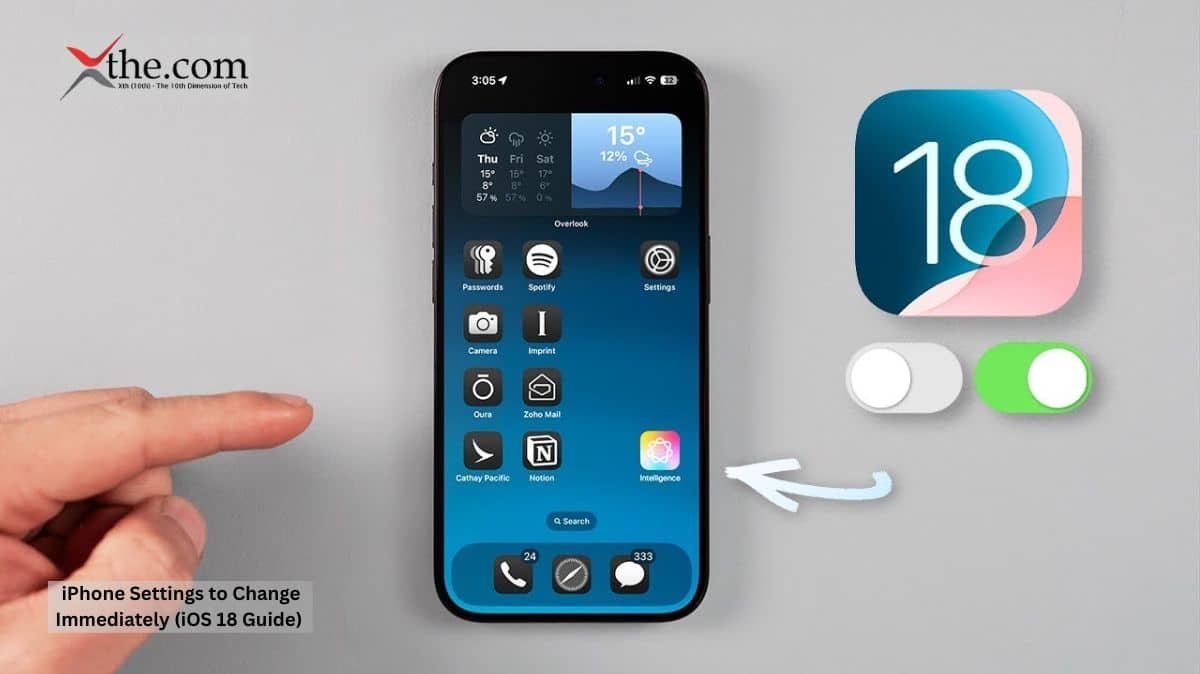
Shifting to an iPhone is a dream for many, specifically the newer versions. The main reason is the quality of photos and the brand value of Apple phones. However, the battery drainage and utility value of an iPhone after spending such a massive amount shifts people away. With the best iOS 18 settings, you can improve this by tweaking some settings. This essential iPhone settings 2026 guide will show you the exact iOS 18 tips and tricks to improve iPhone battery life iOS 18 and master the iOS 18 privacy settings guide right away. These are the must-change iPhone settings for new users looking to maximize iPhone performance iOS 18.
Battery Health
The main concern of people about Apple phones is its extreme battery drainage. With an iOS 18 feature, you can change the maximum battery charging, thereby making it impossible to charge beyond the limit. According to experts, keeping it to 90% or 80% is suggested to increase battery durability.
Photos and Contacts Access
By default, apps have the tendency to obtain maximum data from you. The good news is iOS 18 can restrict or limit this access. If you go to Settings, select Privacy & Security, you can find apps and what data they have access to. You will have 3 options: full access, limited access, or none. This you can select based on which apps you want to give full access to your contacts and pictures, which apps should have limited access, and which apps should not have any access. With this feature, you are the king of data protection.
App Locations
Many apps today ask for your location whether they actually need it or not. The iOS 18 settings allow you to track these requests in the Settings > Privacy & Security > Location Services settings. You can allow an app to access your location: Never, Ask Next Time or When I Share, While Using the App, or Always. You are again the decision-maker; should you actually give location access to all apps always? You can shift it to only while using the app, or even never for apps that do not need it. This will not only protect your data but also save your battery from draining. Even when sharing location, you can choose to share an approximate location or precise location. This gives you full control over the data that is on big apps’ servers.
Subscriptions
It is often a fact that we lose count of our subscriptions, especially in the booming OTT era. There might be a high amount that you are wasting because you forgot to unsubscribe from an app or website that you don’t use anymore. The Apple iOS 18 version has solved this puzzle. If you open Settings, at the top, tap on your name. You will see a Subscriptions icon. If you select it, you can view all the subscriptions which are active at the moment. You can go through, select, and unsubscribe just by clicking Cancel Subscription. You can also view other plans to subscribe with a different plan.
Cellular Data
If you do not have unlimited data, then keeping a limit on cellular data usage is essential for your benefit. The Apple iOS 18 version comfortably manages this trouble as well. Take Settings > Cellular > Cellular Data Options and ensure that it is set to Standard, or else the iPhone might use cellular data even when it has access to Wi-Fi. This ensures that you do not waste your mobile data.
App Store
There is not much you have to do here. However, it is advised to:
Go to Settings > App Store. Under Automatic Downloads, turn off App Downloads if you have multiple devices and don’t want apps you downloaded on one to appear on all of them.
Go to Cellular Data where you will find ways to minimize the use of cellular data. You can either allow automatic downloads, which means any app will be downloaded automatically using cellular data. You can also choose to automatically download and only ask those heavyweight apps for permission, or ask each time of download. This will ensure that your cellular data is saved for your actual needs rather than wasting it on an app download. You can also turn off In-App Ratings & Reviews in the App Store, which will make sure that you don’t get pop-ups each time you open an app to give them a rating.
In Conclusion
The iPhone iOS 18 is even more capable than before in protecting your battery and privacy. The network control gives even more value for money and makes Apple an even better choice. We have covered the must-change 6 features for current Apple users as well; with these changed, your phone is more secure, your data is more secure, and your peace is entirely with you.
FAQ
1. What setting has to be changed in terms of battery?
Answer: Set a limit, preferably 90%, to increase the battery durability.
2. What setting to incorporate in terms of photos and contact sharing?
Answer: It is advised to give limited or no access to your contacts or photos unless it is essential.
3. What about location sharing, should I give access always?
Answer: When sharing your location with any apps, you can share it either while using the app or ask each time. This not only protects your privacy but also your wallet by saving your battery life and durability.
4. Which setting has to be incorporated in terms of cellular data?
Answer: It is suggested to keep it on Standard 5G.
5. Can I actually remove 5-star rating requests by apps?
Answer: Go to App Store settings and turn off In-App Ratings & Reviews, then you won’t receive notifications asking for reviews or ratings.
Source 6 iOS 18 settings I changed immediately – and why you should too