






Plug in one cable. Get video, data, and a full battery charge — all at once. That is the promise of a good USB-C monitor, and in 2026, that promise is finally being kept across nearly every price range.
Whether you are running a MacBook Pro on Apple Silicon or a Windows machine with a USB-C port, the right display can completely change how your desk feels and how fast your work moves. No tangled cable runs. No separate dock. Just one connection that does everything.
But not every USB-C monitor is built the same. Some charge your laptop at a trickle. Others skip Thunderbolt entirely. A few look great on spec sheets and disappoint in real use. After going through the current market — panel specs, power delivery numbers, connectivity options, and real-world compatibility with both macOS and Windows — here are the displays worth your money in 2026.
Quick Picks at a Glance
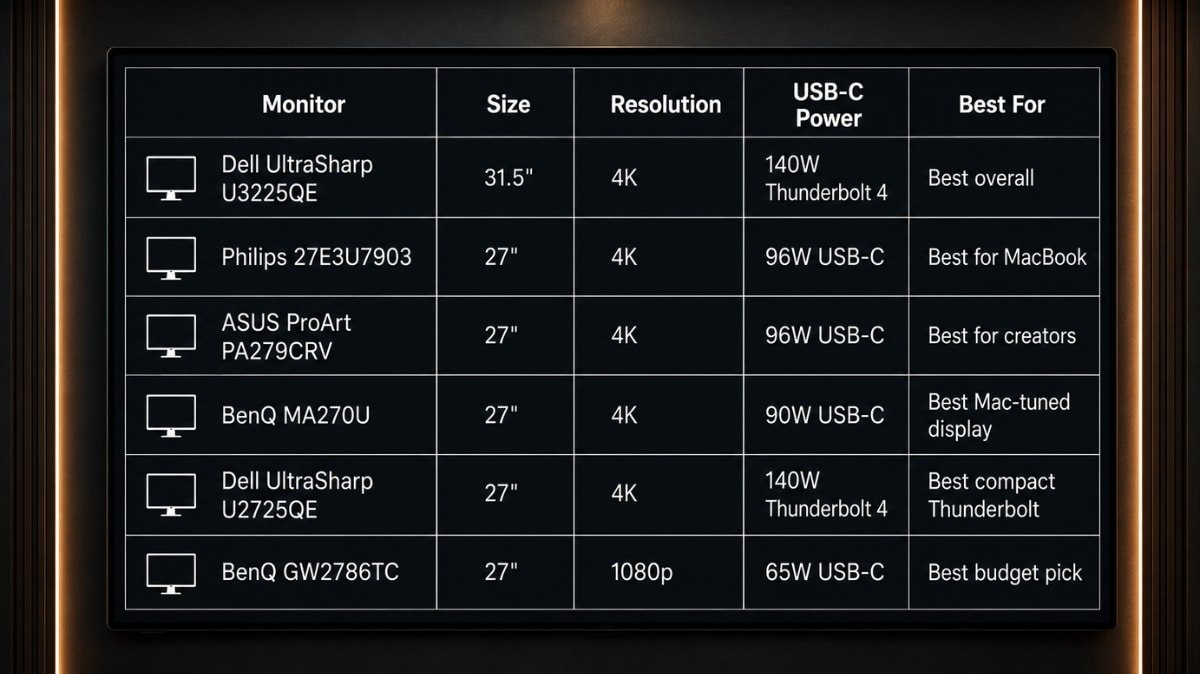
| Monitor | Size | Resolution | USB-C Power | Best For |
| Dell UltraSharp U3225QE | 31.5″ | 4K | 140W Thunderbolt 4 | Best overall |
| Philips 27E3U7903 | 27″ | 4K | 96W USB-C | Best for MacBook |
| ASUS ProArt PA279CRV | 27″ | 4K | 96W USB-C | Best for creators |
| BenQ MA270U | 27″ | 4K | 90W USB-C | Best Mac-tuned display |
| Dell UltraSharp U2725QE | 27″ | 4K | 140W Thunderbolt 4 | Best compact Thunderbolt |
| BenQ GW2786TC | 27″ | 1080p | 65W USB-C | Best budget pick |
Why a USB-C Monitor Makes Sense in 2026
A few years ago, USB-C monitors were a niche product. Today they are the practical choice for anyone using a laptop as their primary machine.
The core reason is simple: modern laptops — especially MacBook Pros — are built around USB-C and Thunderbolt. These ports handle everything the laptop needs. When a monitor also speaks that language, you get a single-cable connection that simultaneously carries the 4K video signal, transfers data from the monitor’s USB hub, and tops off your battery.
Compare that to a traditional setup: one HDMI cable for video, a separate USB cable for the hub, and your laptop charger still plugged into the wall. Three cables versus one. The difference on a shared office desk or a travel setup is not subtle.
For MacBook Pro users specifically, there is another reason to care about the display you buy. Apple’s Liquid Retina XDR screen sets a high bar for color accuracy and brightness. Connecting a poorly calibrated monitor next to it immediately shows the gap. The monitors on this list are chosen in part because they hold up against that standard — the colors do not look washed out when you glance between the MacBook screen and the external display.
USB-C vs Thunderbolt Monitor — What Is the Actual Difference?
This comes up in almost every buying question, and the answer matters for how you shop.
USB-C is a connector type. It is the physical shape of the port. A USB-C monitor uses this connector for video and power delivery, but the underlying standard it uses can vary. Most USB-C monitors use DisplayPort Alt Mode, which handles 4K at 60Hz comfortably and supports up to 100W of power delivery.
Thunderbolt is a protocol that runs over the same USB-C connector — but with significantly more bandwidth and features. A Thunderbolt 4 monitor can push higher resolutions at higher refresh rates, support daisy-chaining a second monitor, and deliver up to 140W of power delivery. Thunderbolt monitors also work as full docking stations with fewer compromises.
The practical difference: if you use a MacBook Pro 16-inch and need to charge it quickly while working, a Thunderbolt 4 monitor with 96W or higher delivery is the right call. If you use a MacBook Air or a 14-inch Pro, a standard USB-C monitor with 65–90W is enough and usually costs considerably less.
One important note for Windows users: most modern Windows laptops support DisplayPort Alt Mode over USB-C, which means standard USB-C monitors work without issues. However, Thunderbolt is only available on Intel-based machines with Thunderbolt support — not all Windows PCs have it. Check your laptop specs before buying a Thunderbolt monitor.
How Much Power Delivery Do You Actually Need?
This is the single most misunderstood spec in this category. Here is a straightforward breakdown.
45W — Fine for ultrabooks and Chromebooks. Not enough for a MacBook Pro under load. Your battery will drain while working.
65W — Covers MacBook Air M2 and M3 comfortably. Handles most thin Windows laptops. The minimum worth considering if you plan to charge while working.
90–96W — The sweet spot. Charges MacBook Pro 14-inch fully and keeps MacBook Pro 16-inch stable under moderate workloads. Most of the monitors on this list land here.
100–140W — Thunderbolt 4 territory. Fast-charges even the 16-inch MacBook Pro under heavy load. Worth it if you run demanding workflows — video export, large Xcode builds, extended Final Cut timelines.
If the monitor delivers less power than your laptop’s charger, your machine will not be damaged. It will simply charge more slowly, or in some cases not charge at all while running intensive tasks. That is not dangerous, but it defeats the purpose of the single-cable setup.
The Best USB-C Monitors in 2026
1. Dell UltraSharp U3225QE — Best Overall USB-C Monitor
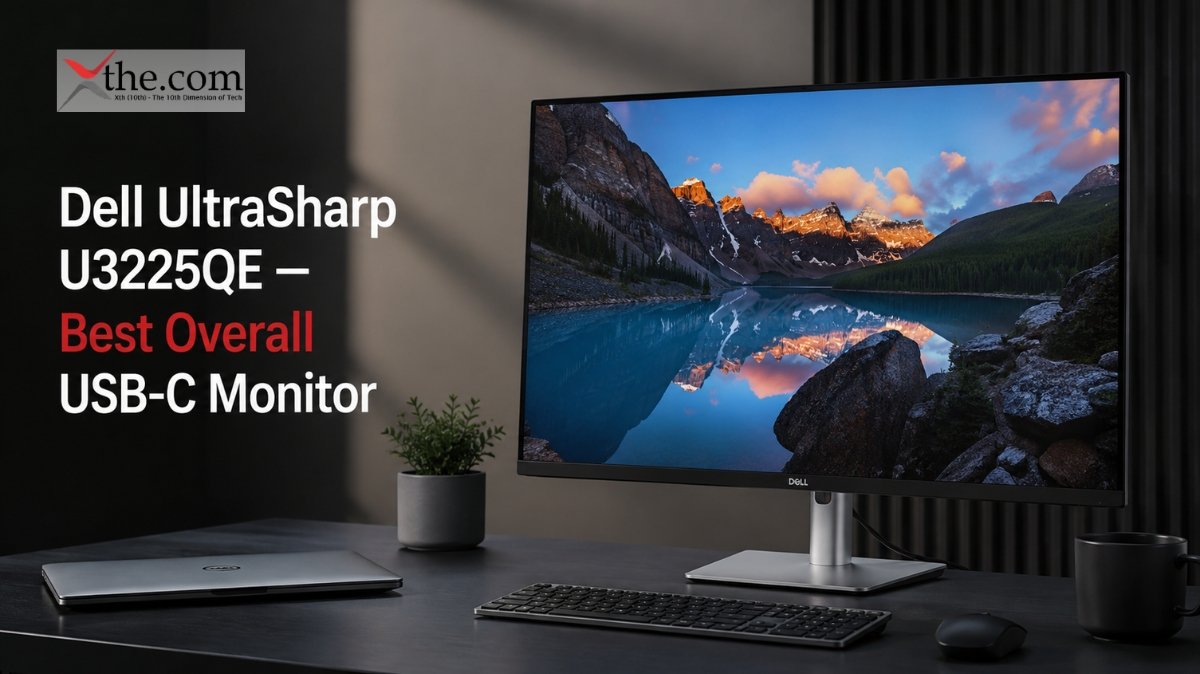
Price: ~$899 | Size: 31.5 inches | Resolution: 4K (3840 x 2160) | Panel: IPS Black | USB-C Power: 140W via Thunderbolt 4
If you want one monitor that handles everything without compromise, the Dell UltraSharp U3225QE is the answer in 2026. It is the rare display that gets nearly every spec right at the same time.
The IPS Black panel delivers twice the contrast ratio of a standard IPS screen — 2,000:1 versus the usual 1,000:1. Black levels look genuinely deep rather than washed out gray, which matters for anyone doing photo work or spending long hours looking at dark-mode interfaces. Color coverage sits at 98% DCI-P3 with factory calibration, so what you see is accurate out of the box.
The connectivity is where this monitor earns its price. Two Thunderbolt 4 ports — one in, one out for daisy-chaining — deliver 140W of power delivery, six USB-A ports, a pop-out USB hub on the side, built-in 2.5Gbps Ethernet, and KVM switching for two computers. In a real office setup, this replaces a dock entirely.
The 120Hz refresh rate is a bonus that most productivity monitors skip. Scrolling through long documents and switching between apps feels noticeably smoother than on a 60Hz display.
What is not ideal: No built-in speakers. The HDR performance is limited compared to OLED displays. At $899, it requires a committed budget.
Best for: Professionals who want a single monitor that functions as a complete workstation hub. Compatible with MacBook Pro and Windows Thunderbolt laptops.
2. Philips 27E3U7903 — Best USB-C Monitor for MacBook Pro
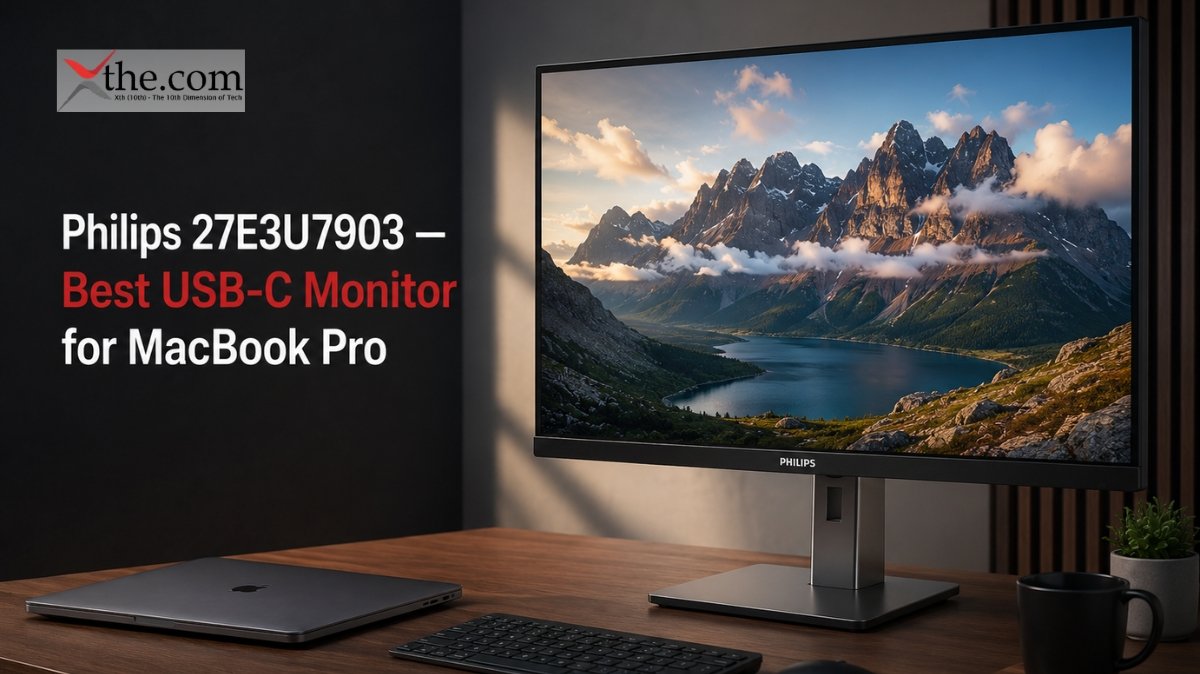
Price: ~$549 | Size: 27 inches | Resolution: 4K (3840 x 2160) | Panel: IPS | USB-C Power: 96W
The Philips 27E3U7903 has quickly become one of the most recommended displays for MacBook Pro users who want serious performance without the Dell price tag. Its 4K IPS panel covers a wide color gamut and handles macOS scaling gracefully — text stays sharp and colors feel calibrated against the MacBook’s own screen.
The 96W power delivery over USB-C is a genuine advantage. It keeps the MacBook Pro 16-inch topped off during typical work sessions, which removes the need to carry a separate charger when the monitor is on your desk. The Thunderbolt 4 port also supports daisy-chaining, so a second display is possible without a dock.
Build quality is solid. The ergonomic stand adjusts for height, tilt, swivel, and portrait rotation, which is better ergonomics than several monitors costing more. The anti-glare coating handles office lighting conditions well without making the image look hazy.
What is not ideal: The 60Hz refresh rate is sufficient for productivity but not ideal if you occasionally game or want smoother scrolling. Speakers are present but not impressive — they serve as a fallback, not a primary audio solution.
Best for: MacBook Pro users who need reliable charging, accurate color, and a clean desk setup at a reasonable price.
3. ASUS ProArt PA279CRV — Best 4K USB-C Monitor for Creators
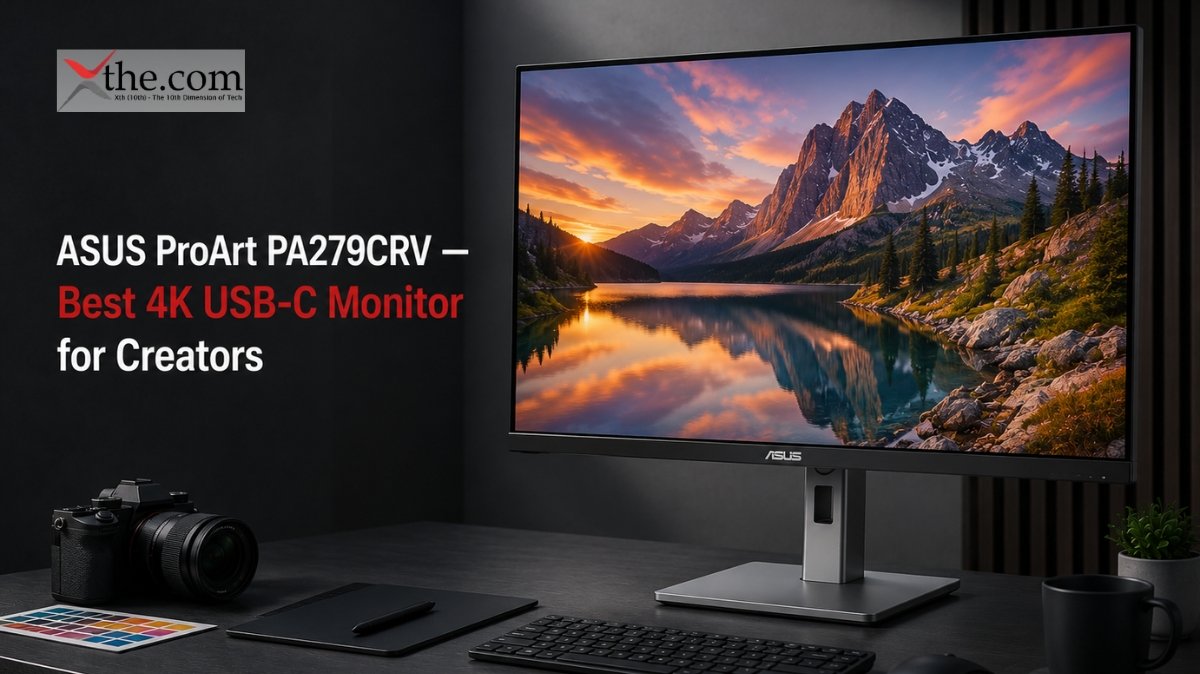
Price: ~$499 | Size: 27 inches | Resolution: 4K (3840 x 2160) | Panel: IPS | USB-C Power: 96W
ASUS built the ProArt PA279CRV for people who care about color — designers, photographers, and video editors who cannot afford inaccurate displays. It ships factory calibrated with a Delta E of less than 2 and covers 99% of the DCI-P3 color space along with 99% of Adobe RGB. A verification report comes in the box.
For creative professionals working between a MacBook and a Windows machine, the Calman Verified calibration means the colors you see on this screen match what clients, printers, and other calibrated monitors will show. That consistency is worth more than most people realize until they have worked without it.
The USB-C port delivers 96W of power, and the monitor includes a built-in KVM switch — a feature that usually only shows up on much more expensive displays. If you have a MacBook and a Windows PC on the same desk, you can switch keyboard and mouse control between them without touching any cables.
The stand is excellent: full height, tilt, swivel, and pivot adjustment with a solid feel that does not wobble.
What is not ideal: The 60Hz refresh rate limits it to productivity use. The HDR implementation is basic. If you need Thunderbolt daisy-chaining, look at the Dell options instead.
Best for: Designers, photographers, and video editors who prioritize color accuracy and need a monitor that works equally well with macOS and Windows.
4. BenQ MA270U — Best USB-C Monitor Tuned for Mac
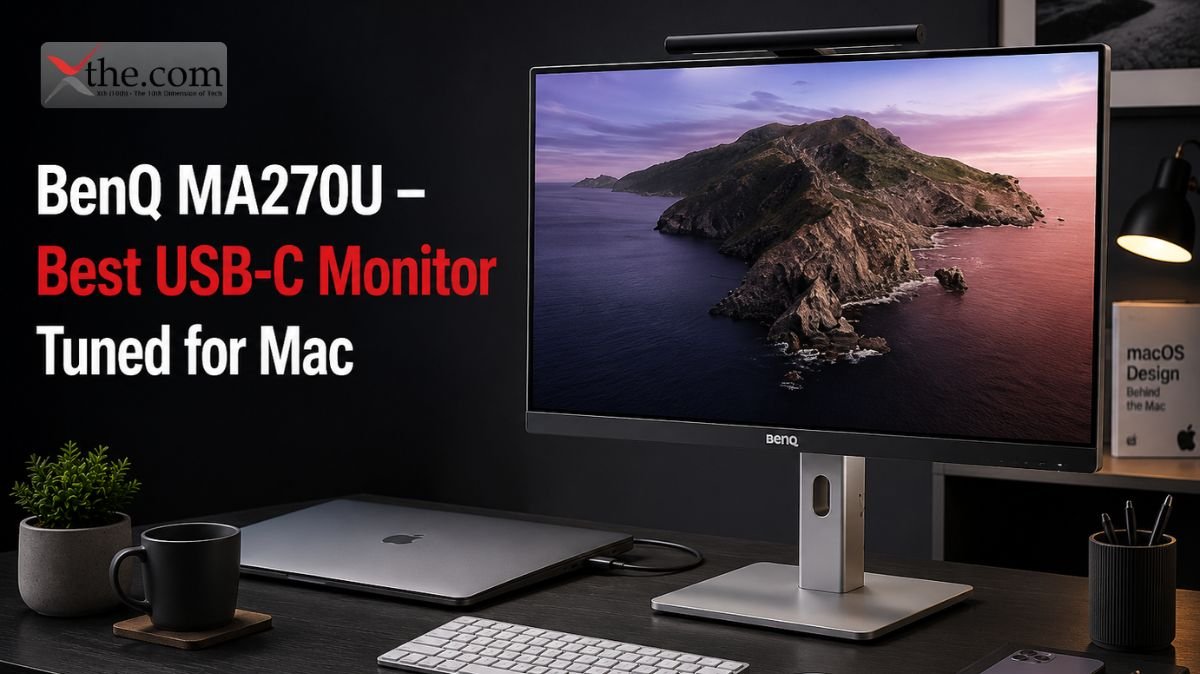
Price: ~$449 | Size: 27 inches | Resolution: 4K (3840 x 2160) | Panel: IPS | USB-C Power: 90W
BenQ designed the MA270U specifically around Mac workflows, and it shows. The display automatically adjusts its color profile based on what content macOS is rendering — it switches between sRGB and P3 color spaces without manual intervention, matching the behavior of the MacBook’s built-in screen. For users who move frequently between browser work and color-sensitive creative tasks, this is a practical feature, not just a marketing claim.
The 4K image quality is strong. Colors are vivid, text is sharp at native resolution without scaling, and the panel handles both bright daylight environments and dim evening setups without needing manual adjustments each time. The 90W USB-C charging keeps the MacBook Pro 14-inch fully charged and maintains the 16-inch during normal workloads.
Connectivity includes two HDMI ports in addition to USB-C, which makes it straightforward to add a second device — a work laptop and a personal MacBook, for example — without a separate hub.
What is not ideal: The 90W power delivery is slightly below the 96W sweet spot for MacBook Pro 16-inch users running heavy workloads. The software that handles the automatic color switching requires installation and occasional updates.
Best for: Mac-first users who want a display that integrates naturally with macOS color management and charges their laptop at the same time.
5. Dell UltraSharp U2725QE — Best Compact Thunderbolt Monitor
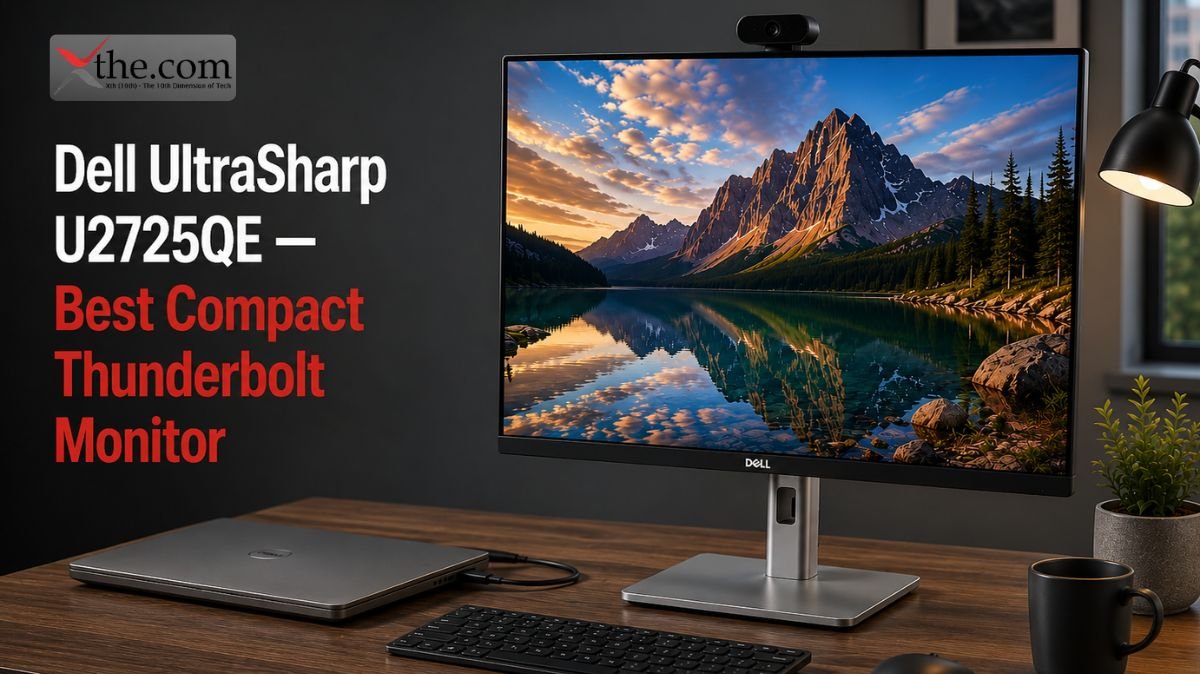
Price: ~$649 | Size: 27 inches | Resolution: 4K (3840 x 2160) | Panel: IPS Black | USB-C Power: 140W via Thunderbolt 4
Everything that makes the U3225QE compelling, compressed into a 27-inch form factor. The U2725QE brings the same IPS Black panel technology, Thunderbolt 4 connectivity with 140W power delivery, and deep blacks to a desk footprint that suits smaller spaces.
The contrast ratio improvement from IPS Black is visible in everyday use. Dark gray sidebar backgrounds in code editors and dark mode interfaces look genuinely dark rather than a washed-out pale gray. It is a subtle upgrade that you stop noticing when it is present and immediately miss when you switch to a standard IPS panel.
For MacBook Pro users with a 16-inch machine who need confident fast-charging through the monitor, 140W is the number to look for — and this display delivers it without requiring a separate wall charger on the desk.
What is not ideal: More expensive than non-Thunderbolt 4K alternatives at the same size. No built-in speakers. If you do not need Thunderbolt specifically, the Philips or ASUS options above offer comparable image quality for less.
Best for: MacBook Pro users in tighter workspaces who need Thunderbolt 4 docking, fast charging, and a high-quality 4K panel.
6. BenQ GW2786TC — Best Budget USB-C Monitor
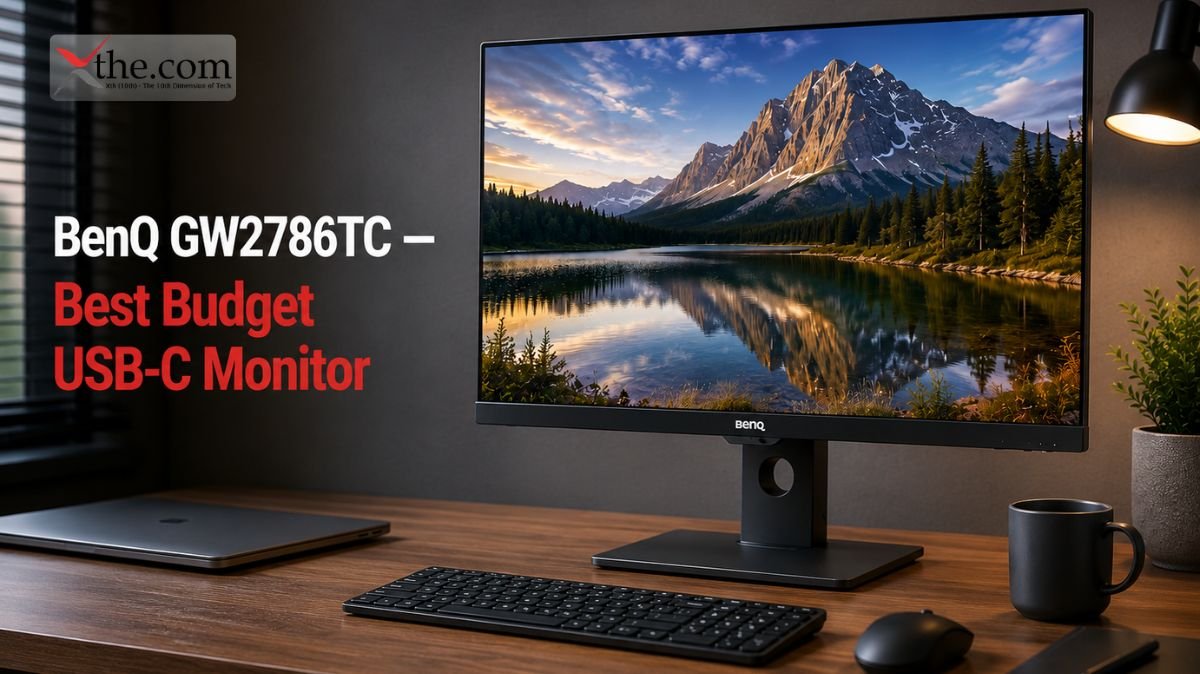
Price: ~$179 | Size: 27 inches | Resolution: 1080p (1920 x 1080) | Panel: IPS | USB-C Power: 65W
Honest budget monitors are harder to find than the market implies, but the BenQ GW2786TC is a genuinely good one. At under $180, it offers a clean 27-inch IPS panel, 100Hz refresh rate, 65W USB-C charging, and an ergonomic stand with height and swivel adjustment — features that competing budget monitors routinely skip.
The 1080p resolution at 27 inches is a real trade-off. Text is noticeably softer than 4K, and anyone coming from a MacBook’s Retina display will feel the difference immediately. That said, for users who need a reliable second screen for reference windows, video calls, or productivity apps where pixel density is not critical, it delivers clean performance.
BenQ includes its Eye Care technology — low blue light, flicker-free backlight — which matters for long work sessions. The 65W charging is sufficient for MacBook Air and most 13–14-inch Windows laptops but falls short for the MacBook Pro 16-inch under heavy use.
What is not ideal: 1080p resolution is a significant step down from the rest of this list. Not suitable for photo editing, video work, or users sensitive to pixel density. No Thunderbolt.
Best for: First desk setup, budget-conscious buyers, or as a secondary monitor where resolution is not the priority.
What to Check Before You Buy
Confirm your laptop’s USB-C port outputs video. Not every USB-C port supports DisplayPort Alt Mode. On MacBook Pros, all Thunderbolt/USB-C ports support video output. On Windows laptops, check your spec sheet — some USB-C ports are data-only.
Match power delivery to your laptop’s charger. A MacBook Air charges fine at 65W. A MacBook Pro 16-inch running demanding workloads needs 90W or more to not slowly drain the battery while plugged into the monitor.
Use the cable that ships with the monitor. Generic USB-C cables often lack the bandwidth needed for 4K at 60Hz and full power delivery simultaneously. The included cable is certified for the monitor’s full spec.
Thunderbolt monitors only dock on Thunderbolt laptops. If your Windows PC does not have a Thunderbolt port, a Thunderbolt monitor still works — it just runs as a standard USB-C display without the full docking features.
Check your desk depth. A 31.5-inch 4K monitor needs at least 28 inches of desk depth for comfortable viewing. A 27-inch model works comfortably at 24 inches.
Frequently Asked Questions
1. Do USB-C monitors work with any laptop?
They work with any laptop that has a USB-C port supporting DisplayPort Alt Mode. MacBook Pros, MacBook Airs, most modern Dell XPS and HP Spectre models, and many ThinkPads support this. Older laptops with USB-C ports that are data-only will not output video.
2. Can I daisy-chain two USB-C monitors from a MacBook Pro?
Yes, with Thunderbolt monitors that support daisy-chaining. MacBook Pros with M2 Pro, M3 Pro, or M3 Max chips support multiple external displays. Base M1 and M2 chips officially support one external display, though DisplayLink adapters can add more.
3. Is 65W charging enough for a MacBook Pro?
For a 14-inch MacBook Pro during light tasks — web browsing, documents, meetings — yes. For the 16-inch model under sustained workloads, 65W will maintain the battery at best and drain it slowly at worst. 90W or higher is the safe choice for the 16-inch.
4. Do these monitors need special drivers on macOS?
Most work plug-and-play on macOS. Some BenQ and ASUS displays have optional companion software for additional color controls, but the monitor functions fully without it.
5. What refresh rate do I need for a productivity monitor?
60Hz is sufficient for office work, writing, design, and video editing playback. If you use your setup for gaming, motion-intensive video work, or prefer smoother scrolling, look for 100Hz or 120Hz panels — the Dell U3225QE and BenQ GW2786TC both offer higher refresh rates on this list.
The Bottom Line
The best USB-C monitor for your setup depends on one thing more than any other: how much power your laptop actually needs.
For most MacBook Pro users — 14-inch or 16-inch — the Dell UltraSharp U3225QE is the monitor to buy if budget allows. It handles charging, docking, color accuracy, and productivity features better than anything else at its price point. If Thunderbolt is not a requirement, the Philips 27E3U7903 and ASUS ProArt PA279CRV offer serious 4K quality and 96W charging at a meaningfully lower cost.
Creative professionals who live in color-managed workflows should look closely at the BenQ MA270U or the ASUS ProArt. Both are factory calibrated and hold up in production environments.
On a tight budget, the BenQ GW2786TC is the honest choice — it does not pretend 1080p is 4K, but it does deliver everything it promises at a price that makes a second screen practical for almost any desk.
One cable. Better setup. That is still the point.